
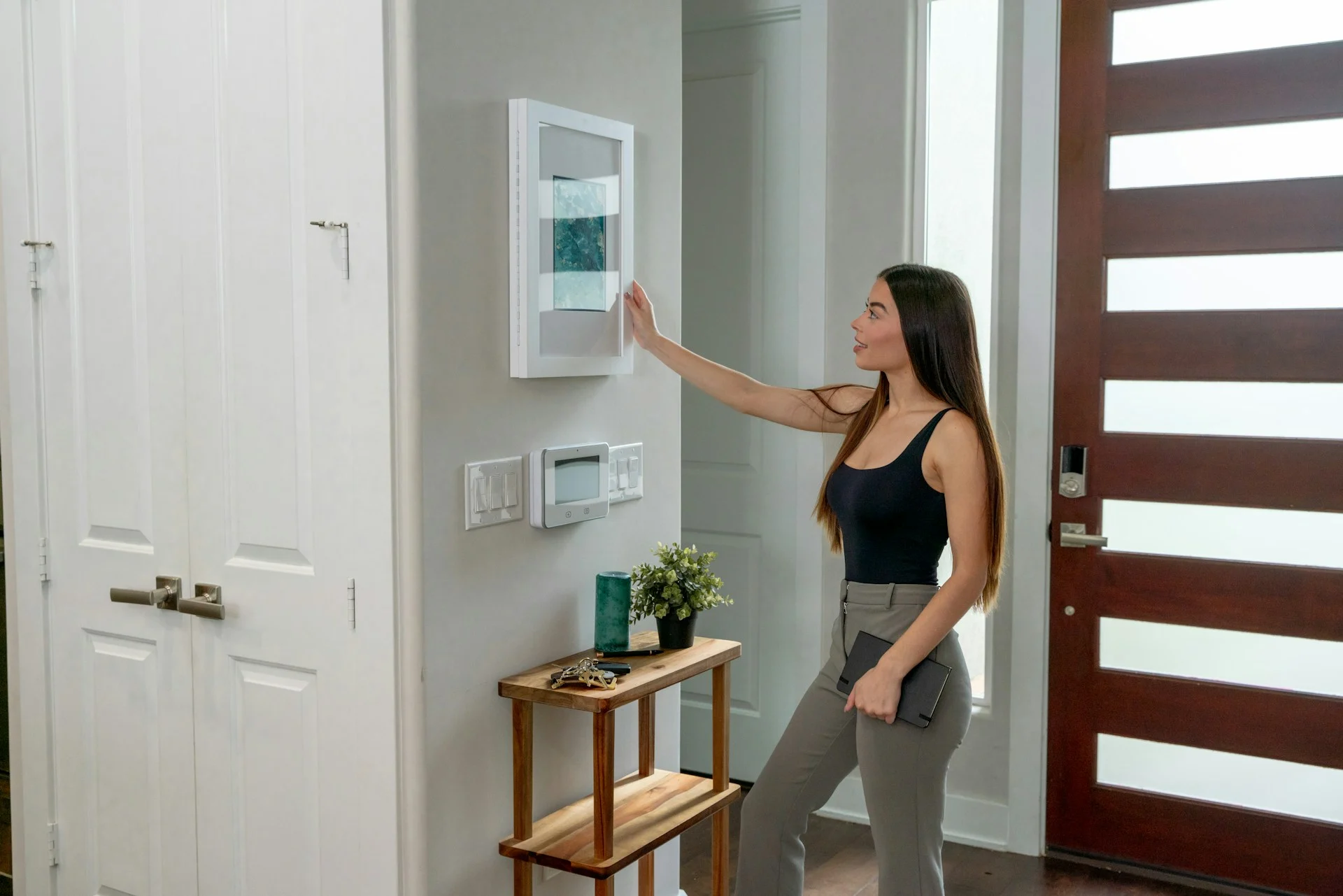
You can turn an old iPad into a decent stand-in for Apple’s HomeView, and it costs far less than the $299 Apple is asking. Using an old iPad as HomeView means making it a Home hub, locking it to one app, mounting it, and keeping it powered.
The idea comes from AppleInsider’s guide, which argues that an iPad on a wall bracket suits many homes better than a dedicated device. I couldn’t open that article, so what follows is built from Apple’s HomeView announcement coverage and older, tested iPad-hub guides. Menu names may differ slightly on your iPadOS version.
Key takeaways
- Apple announced HomeView on 13 October 2026 at $299, shipping from 13 November.
- Any iPad you already own can act as a Home hub and a wall control panel.
- Guided Access keeps the screen locked to the Home app.
- You give up the six-person profiles, the speaker base and the Siri AI features.

What is HomeView, and what are you copying?
According to 9to5Mac’s launch report, HomeView has a 7-inch square Liquid Retina screen, a tabletop version with a speaker base, and a wall version that needs a separate mount. Both cost $299.
It recognises up to six people, each with a personal Home Screen. It also has display modes called Faces, such as a photo slideshow, a Home Modular controls view and a camera view with up to nine live feeds. We covered the strategy behind it in Apple HomeView: Why the $299 Hub Is Really a Siri AI Bet.
How do you make an old iPad a Home hub?
A Home hub is a device that stays home and runs your automations, even when your phone is away. 9to5Mac’s HomeKit guide lists the steps:
- Open Settings, tap your name, then iCloud, and confirm it uses the same Apple ID as your Home app.
- Check that Home is switched on in the iCloud list.
- Go to Settings, then Home, and turn on the option to use this iPad as a Home hub.
The iPad must stay in your home, powered on and on Wi-Fi. Because it stays plugged in, a tired battery matters little.
How do you lock it to the Home app?
Guided Access is an Apple accessibility feature that pins the iPad to a single app. Turn it on under Settings, Accessibility, Guided Access, then set a passcode. Open the Home app and start a session. You can end it with the passcode, or Face ID or Touch ID where available.
Adjust the session settings so the display doesn’t sleep. That is what makes it feel like an appliance rather than a tablet.

What is the best way to mount and power it?
Choose a bracket you can take the iPad out of. The 9to5Mac guide favoured the elago Tablet Wall Mount, which holds the iPad between two silicone pads and leaves about 7mm behind it for cables. That makes reboots and manual updates easy. AppleInsider’s author takes the same approach with two brackets on an iPad Pro.
Run the charging cable so it’s hidden, and keep the iPad on permanent power. BGR also suggests a never-auto-lock display and a passcode on other apps, since the iPad stays signed into your account.
Old iPad vs HomeView: what do you give up?
| Feature | HomeView | Old iPad |
|---|---|---|
| Price | $299 | Free if you own one, plus a mount |
| Home hub | Yes | Yes, via Settings |
| Screen | 7-inch, down to 0.3 nits | Usually larger, varies |
| Speaker | Two drivers, woofer, radiators | Basic iPad speakers |
| Six personal profiles | Yes | No |
| Siri AI | Yes | Depends on the model |
My opinion: for a kitchen or hallway panel that mostly flips lights and shows cameras, the old iPad gets you most of the value. The speaker and multi-user recognition are where HomeView genuinely earns its price.

What happens next
HomeView ships from 13 November 2026. 9to5Mac reports it won’t be sold in the European Union because Siri AI isn’t available there, so EU readers may find the iPad route is the only one. The PoE wall adapter isn’t due until early 2027. Reviews after launch will show how much the extras matter.
FAQ
Which old iPads can be a Home hub?
Any iPad that runs a recent iPadOS and offers the Home hub option in Settings. Check Settings, then Home, on your device.
Does Guided Access stop the iPad from sleeping?
Not by itself. Adjust the session options and display auto-lock so the screen stays on while it is plugged in.
Will an old iPad get Siri AI like HomeView?
Only if the model supports Apple Intelligence. Older iPads usually won’t, so expect basic Siri.
Next step: open Settings, then Home, on that spare iPad and switch on the hub option before you buy any bracket.
Leave a comment